Confronted with annoying pop-ups or deeply regret that last click? Perhaps you simply want to limit distractions? Whatever the case, blocking a website can be of handy use. In this comprehensive guide, we will share some effective techniques on how to block a website.
#How to Block a Website
How often have you asked yourself, "Can I just get rid of this annoying website?" The answer is, yes, you can! Blocking a website can be done in several ways, right from your internet browser to tweaking your computer's settings. Let's dive right into it!
##Blocking Websites on Your Browser
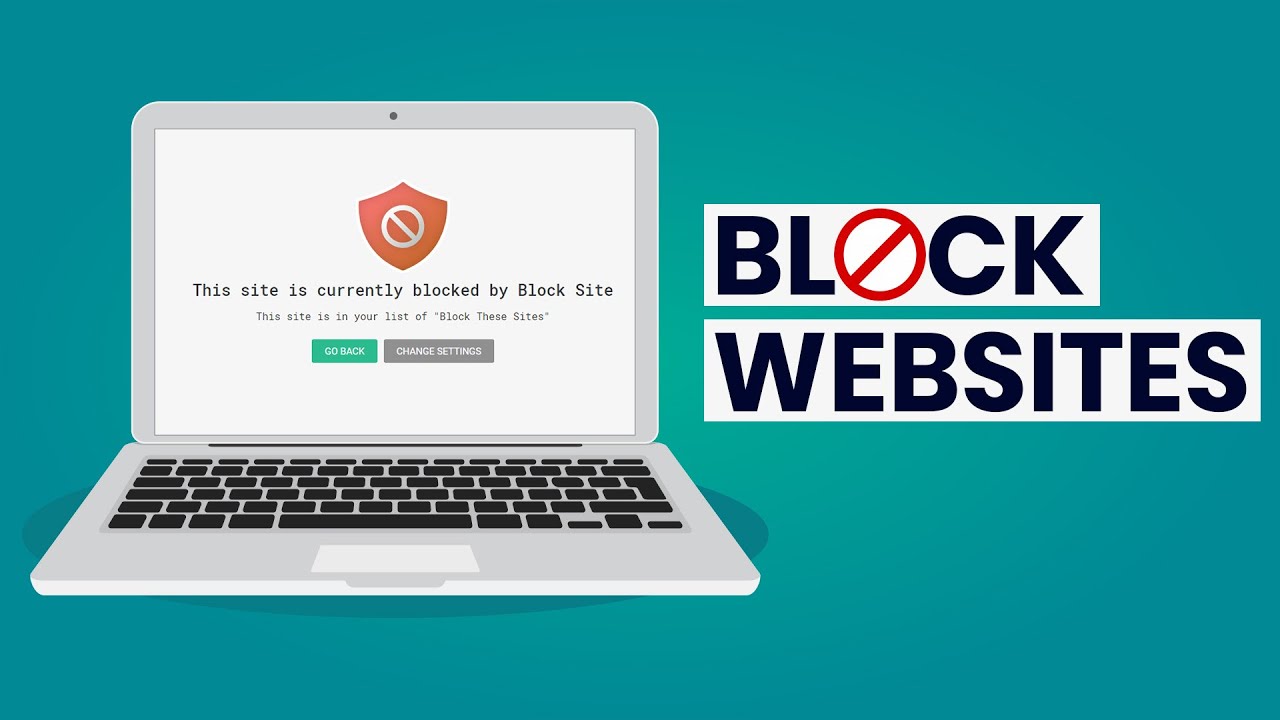
Doing it straight from your browser is the quickest way. So, got a site on your black-list right now? Follow these steps to block it:
Chrome: Download an extension called 'Block Site' from the Chrome Web Store.
Firefox: Use an add-on called 'Block Site'; search and add it in the Firefox Add-ons section.
Microsoft Edge: Use the 'Block Site' extension found in the MS Edge Add-ons store.
For detailed settings, follow instructions provided by the respective add-on or extension.
##Editing Computer Settings
Want a more permanent solution? Look no further than your computer's system settings. Wondering how? Here's how it's done in Windows and macOS:
Windows: Open the 'hosts' file (C:\Windows\System32\drivers\etc\) on Notepad, scroll to the bottom, write the site's IP address, press 'Tab' key, then write the site's address. Save changes.
macOS: Terminal > sudo nano /etc/hosts, enter password, add the site's address, press 'control + O' to save, 'enter' to confirm, and finally 'control + X' to exit. Fear spreadsheets? No worries. Windows users can download a free app like URL Blocker while macOS patrons can use the SelfControl app for a simplified process.
Feeling the power yet? Mastering how to block a website is as simple as pie. Whether from the browser or directly from your computer settings, these steps should liberate you from unwanted cyberspace distractions. Remember, a peaceful online experience is just a few steps away!



![Tubemate 3 Apk for Android [ FREE ]](https://lh3.googleusercontent.com/blogger_img_proxy/AEn0k_smAC4ZnnHw53cKlWY_5SyZPwMkoIdZpmnUWJrKEqV3ox2zYLkmHHpTBKuVYfLxBRo3fXIP24-7K9mWXWAbhzxp1IBKBjCtQHT5TQZjmulo8OWLyPBnR_8Z03MN0rQkcW3Pyf4smD3oz1JE79keUS-vfdwccZahDR67xVmo0Bp5FWnAix2l=w72-h72-p-k-no-nu)

0 Comments